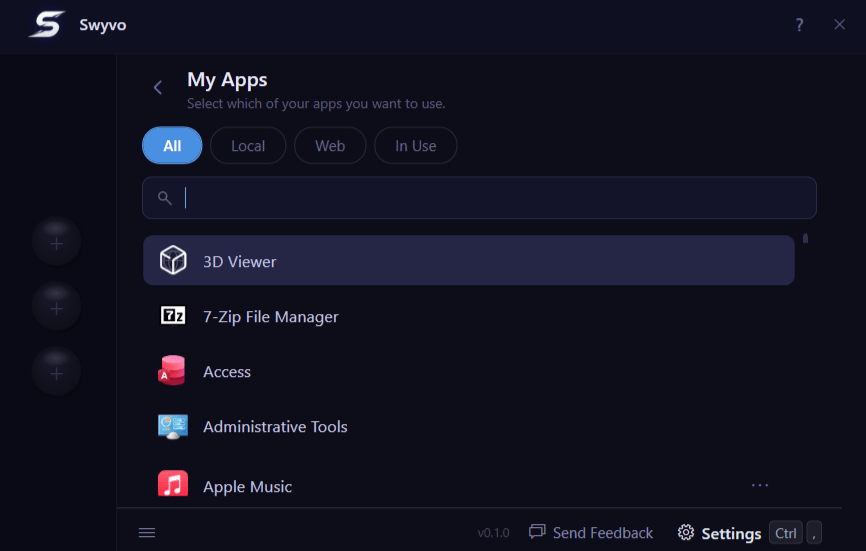
Sublists
- All: Contains all installed and added web apps in one unified view.
- Local: Filters to show only the applications physically installed on your device. Clicking a local app opens it inside Swyvo’s window alongside your sidebar.
- Web: Filters to show the custom web apps you have configured and also the apps from the App Gallery.
- In Use: Shows only the apps currently assigned to your app slots — the quick-access buttons on the left side of the hub.
Manage Web App
After you add a website from New Web App you can go to the Web sublist and right click or pressAlt + Enter to open a menu to manage the app. From there you can:
- Add/Remove the app to/from the app slots.
- Edit. It has options to change the icon and name of the app.
- Delete. Removes the website from My Apps. If a rule is watching it, Swyvo asks whether to keep that rule. See Deleting a saved website.
Keyboard Navigation
Pro-tip: Click the ? button or pressCtrl + F1 to quickly see how to navigate the page.
You can navigate the lists with the Up/Down arrows and the sublists with the Left/Right Arrows.You can search for an app by immediately typing the name of the app (You can disable this option if you don’t like it from General settings). If you decide to disable it you can focus on the searchbar by pressing
Ctrl + F or just / .For web apps you can press
Alt + Enter to open a menu to manage the app. You can navigate the options normally with Up/Down arrows and close it with Esc .You can navigate the edit page of a web app by pressing
Tab andShift + Tab .