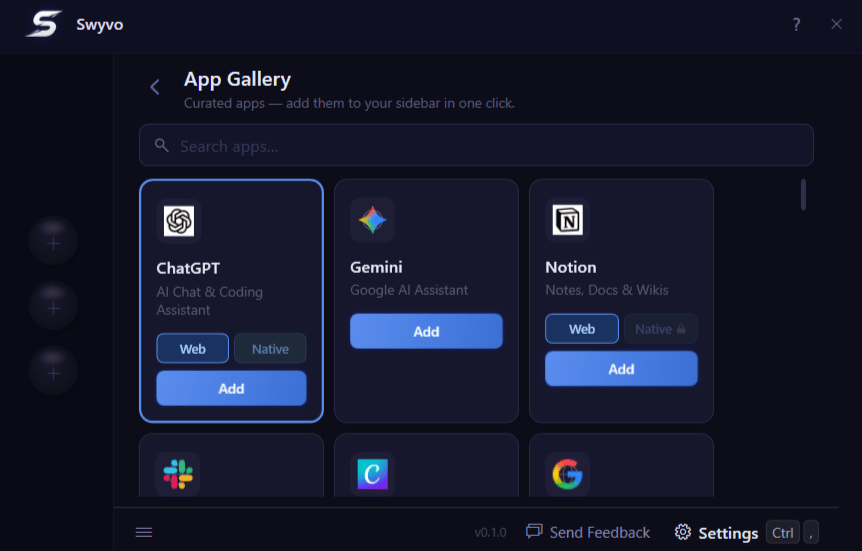
App Categories
- Web-Only: These applications do not have a dedicated Windows app. They open in a compact web window inside Swyvo.
- Web + Native: These applications have both a Windows app and a web version. You can choose which one you want to use.
Web vs Native. What to choose?
- Web: Opens in a compact web window inside Swyvo. Loads fast and takes up minimal screen space.
- Native: Runs as its own full Windows app alongside Swyvo’s sidebar. Gives you access to all the app’s features, though it will take up more screen space than the web version.
Keyboard Navigation
Pro-tip: Click the ? button or pressCtrl + F1 to quickly see how to navigate the page.
You can navigate the App Gallery by using Tab to move right and Shift + Tab to move left. When focused on an app you can use the Left/Right arrows to choose between Web or Native option and then click Enterto add the app on the app slots.You can search for an app by immediately typing the name of the app (You can disable this option if you don’t like it from General settings). If you decide to disable it you can focus on the searchbar by pressing
Ctrl + F or just / .