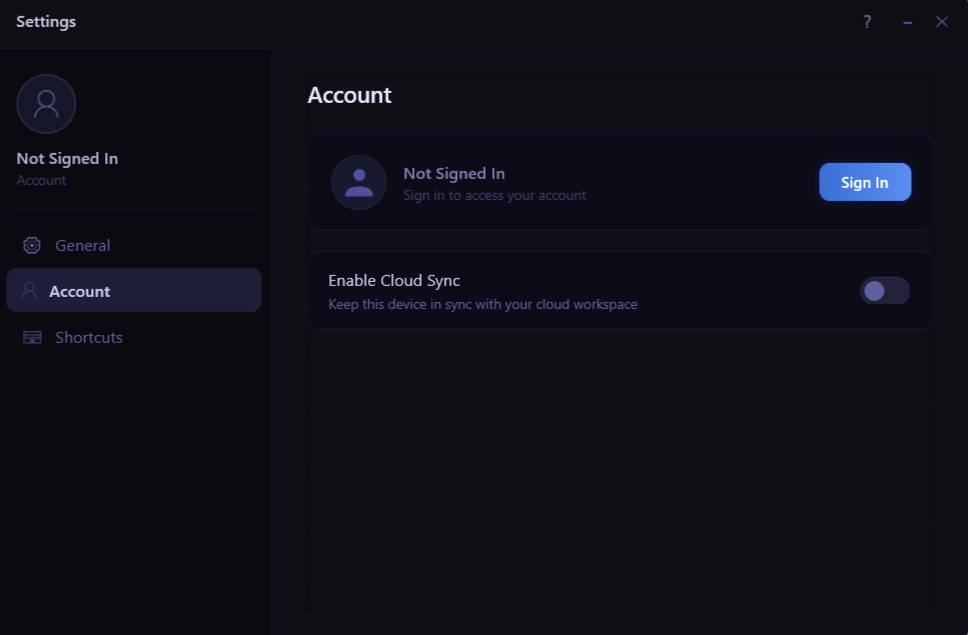
- Account Status: Sign in to authenticate your profile and access your saved data.
- Enable Cloud Sync: Toggle this setting to keep your current device continuously synchronized with your cloud workspace and be able to keep the same setup across all your devices.
How Cloud Sync Works
When Cloud Sync is enabled, Swyvo automatically keeps your app slots, settings, shortcuts, workspace rules, and custom web apps in sync across all your devices. No manual saving or exporting needed — it all happens in the background.Cloud Sync requires a Pro plan. You also need to be signed in before turning on the toggle.
Turning it on for the first time
When you flip the toggle on, Swyvo checks whether you already have a cloud workspace saved:- No cloud save yet — your current setup is uploaded automatically and becomes your cloud workspace.
- Cloud already has a workspace — a dialog appears asking you to choose which setup to keep (see Conflicts below).
While sync is active
Once enabled, everything runs quietly in the background:- On startup — Swyvo pulls the latest cloud snapshot and applies it before you start using the app.
- When you make a change — your new setup is pushed to the cloud within a fraction of a second.
- When another device makes a change — Swyvo picks it up in real time and updates your current device automatically.
Slot Dot Indicators
When Cloud Sync is active, small colored dots may appear on app slots in the hub. Here is what each one means:- 🟠 Amber dot — The app in this slot is not installed on this PC. The slot was synced from another device, but Swyvo cannot find the app here. The slot still exists — it just cannot be launched on this machine.
- 🔵 Blue dot — This slot has been replaced locally on this PC. You are using a different app here than what is saved in the cloud. The cloud slot is unchanged; this override only applies to this device.
Scenarios
Setting up a new device- Install Swyvo and sign in with your account.
- Go to Settings → Account and turn on Enable Cloud Sync.
- If your cloud workspace and the new device have different setups, a dialog appears — choose whether to restore the cloud or upload this device.
Conflicts
A conflict happens when both this device and another device have made changes since the last successful sync. Swyvo detects this automatically and shows a dialog with three options:- Keep cloud backup — Applies the cloud workspace to this device. Your local changes are discarded.
- Keep local setup — Uploads this device’s setup to the cloud, overwriting the cloud copy. A second confirmation is required before this happens.
- Cancel — Leaves everything unchanged and turns Cloud Sync off on this device. You can re-enable it later.