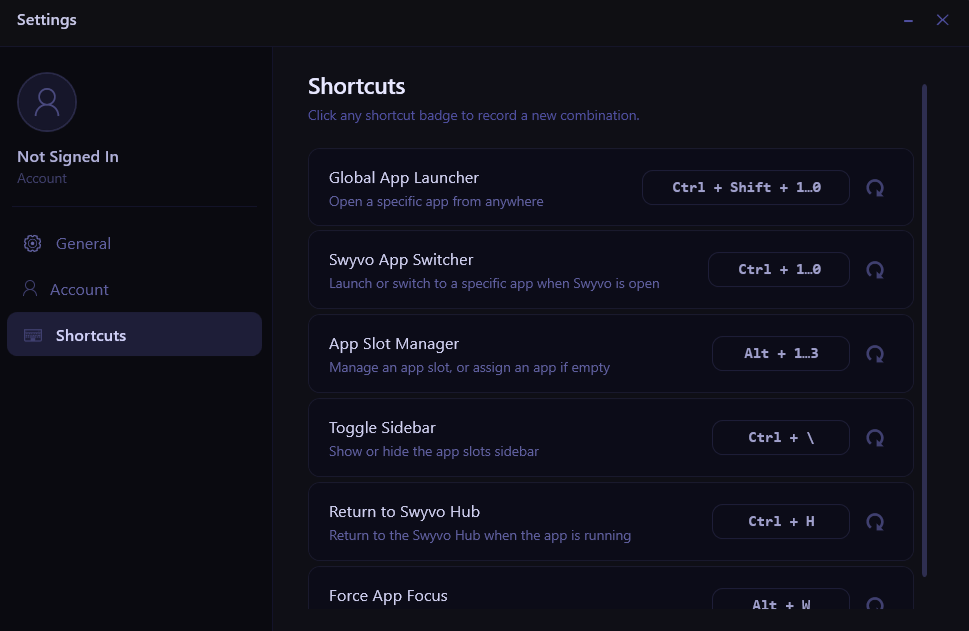
Shortcuts
- Global App Launcher: Use
Ctrl + Shift + 1,2,3to launch a specific app (where the app that occupies the higher app slot is at slot number 1 and the app that occupies the lower slot is at slot number 3) even when Swyvo Hub or Swyvo App (an app running through Swyvo) isn’t currently open (requirement: Swyvo must run in the background). - Swyvo App Switcher: Use
Ctrl + 1,2,3to launch a specific app when Swyvo Hub is open or switch to a specific app when a Swyvo App is open. - App Slot Manager: Use
Alt + 1,2,3to manage a specific app or assign an app if the app slot is empty (only works when Swyvo Hub is open - not working when a Swyvo App is open). - Toggle Sidebar: Use
Ctrl + \to show/hide the app slots sidebar when a Swyvo App is open. Hiding the sidebar reduces the screen size taken by the app giving you more room to work. - Return to Swyvo Hub: Use
Ctrl + Hto return to Swyvo Hub when you’re using a Swyvo App. - Force App Focus: Use
Alt + Wto change focus between Swyvo Hub or a Swyvo App and the last OS window you were working on. Using this shortcut enables you to easily ping-pong between the two windows you’re working on without needing to click on a window to change focus or doubleAlt + Qto hide and then show again the Swyvo App.