> ## Documentation Index
> Fetch the complete documentation index at: https://manual.swyvo.app/llms.txt
> Use this file to discover all available pages before exploring further.
# Workspaces
Personalize your Swyvo experience by automating the way you work so you remove all friction and use Swyvo to its full power. This is the place where you can find all tools to improve the way you use and experience Swyvo.
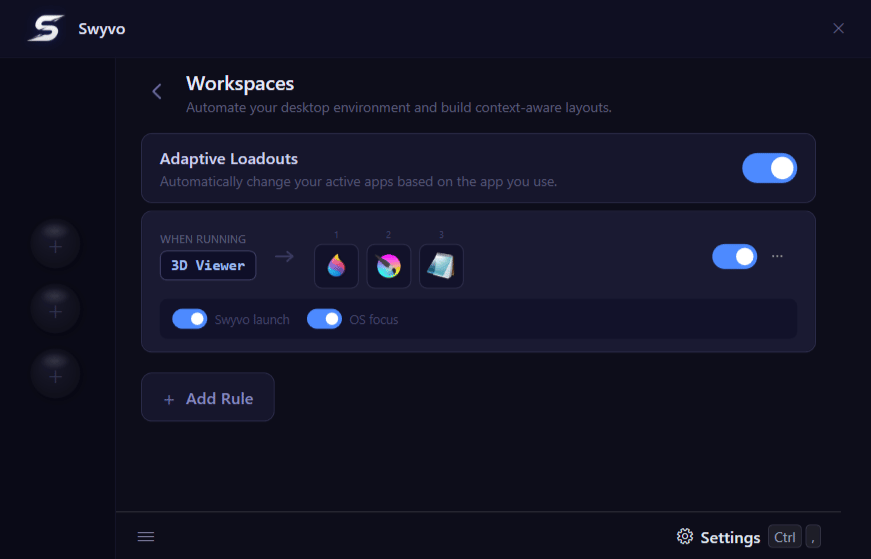 ## Adaptive Loadouts
Set up rules to decide which apps you want on the app slots based on the app or website you're working on. The app slots change automatically every time this app is running and revert back to the original when it stops running. You can enable or disable all rules at once.
#### Rules
Each app can have one rule deciding which apps will be available on the app slots when this app is running.
* **Swyvo Launch**: If enabled the rule will work when you launch this app from Swyvo.
* **OS Launch**: If enabled the rule will work when you launch the app normally and not from Swyvo
*Pro-tip:* Right-click or use the three-dot menu on a web app to edit or delete it completely.
## Keyboard Navigation
By pressing `Tab` you can move between the Adaptive Loadouts toggle button, the rules list and the + Add Rule button.
## Adaptive Loadouts
Set up rules to decide which apps you want on the app slots based on the app or website you're working on. The app slots change automatically every time this app is running and revert back to the original when it stops running. You can enable or disable all rules at once.
#### Rules
Each app can have one rule deciding which apps will be available on the app slots when this app is running.
* **Swyvo Launch**: If enabled the rule will work when you launch this app from Swyvo.
* **OS Launch**: If enabled the rule will work when you launch the app normally and not from Swyvo
*Pro-tip:* Right-click or use the three-dot menu on a web app to edit or delete it completely.
## Keyboard Navigation
By pressing `Tab` you can move between the Adaptive Loadouts toggle button, the rules list and the + Add Rule button.
When the focus is on the rules list, using the Up/Down arrows you can select the rule you want and with the Left/Right arrows you can cycle focus between the buttons inside that rule.
Pressing the `Spacebar` toggles any focused toggle buttons and pressing `Enter` clicks any focused button.
You can edit a rule by pressing `Alt + Enter` when focused and also press `Ctrl + N` to Add Rule.