> ## Documentation Index
> Fetch the complete documentation index at: https://manual.swyvo.app/llms.txt
> Use this file to discover all available pages before exploring further.
# Swyvo Hub
The Swyvo Hub is your central command center in Swyvo, giving you quick access to manage your applications, build workspaces, and configure your settings.
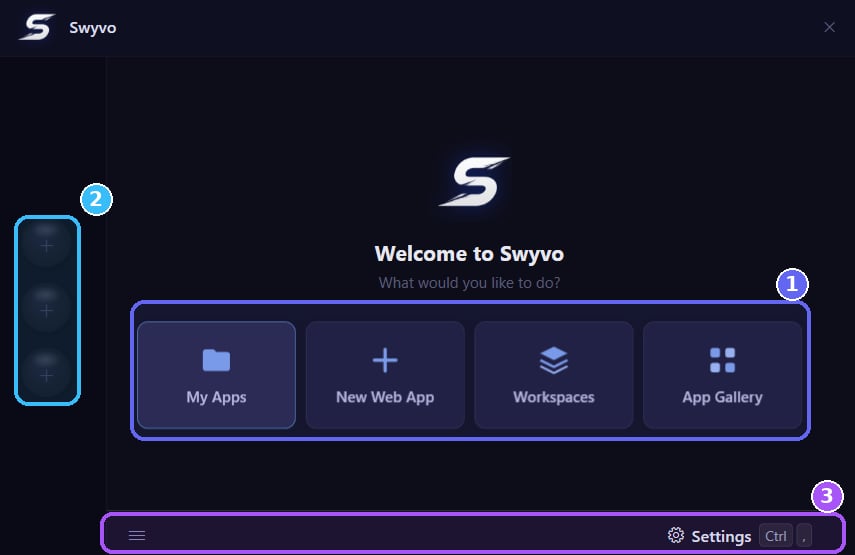 ### 1. Main Navigation
* **[My Apps](/my-apps):** View, filter, and manage all your installed and web apps.
* **[New Web App](/new-web-app):** Instantly add a new website to your Swyvo environment.
* **[Workspaces](/workspace):** Create rules to automatically change the available apps based on the app running.
* **[App Gallery](/app-gallery):** Discover and add pre-configured web apps to your library.
### 2. App Slots
Use the three slots on the left to pin your most frequently used apps for instant access.
### 3. Settings
* **System Menu:** Access the bottom-left hamburger menu to quit the app or open settings.
* **Quick Settings:** Press `Ctrl + ,`at any time on the Home Screen to instantly jump into your Settings menu.
### Keyboard Navigation
You can navigate the central buttons with the arrow buttons or with `Tab` to move right and with `Shift + Tab` to move left.
### 1. Main Navigation
* **[My Apps](/my-apps):** View, filter, and manage all your installed and web apps.
* **[New Web App](/new-web-app):** Instantly add a new website to your Swyvo environment.
* **[Workspaces](/workspace):** Create rules to automatically change the available apps based on the app running.
* **[App Gallery](/app-gallery):** Discover and add pre-configured web apps to your library.
### 2. App Slots
Use the three slots on the left to pin your most frequently used apps for instant access.
### 3. Settings
* **System Menu:** Access the bottom-left hamburger menu to quit the app or open settings.
* **Quick Settings:** Press `Ctrl + ,`at any time on the Home Screen to instantly jump into your Settings menu.
### Keyboard Navigation
You can navigate the central buttons with the arrow buttons or with `Tab` to move right and with `Shift + Tab` to move left.
You can manage the app slots with `Alt + 1,2,3` (check [Shortcuts](shortcuts) for more details).
You can quit the app with`Ctrl + Q ` and then Enter.