> ## Documentation Index
> Fetch the complete documentation index at: https://manual.swyvo.app/llms.txt
> Use this file to discover all available pages before exploring further.
# My Apps
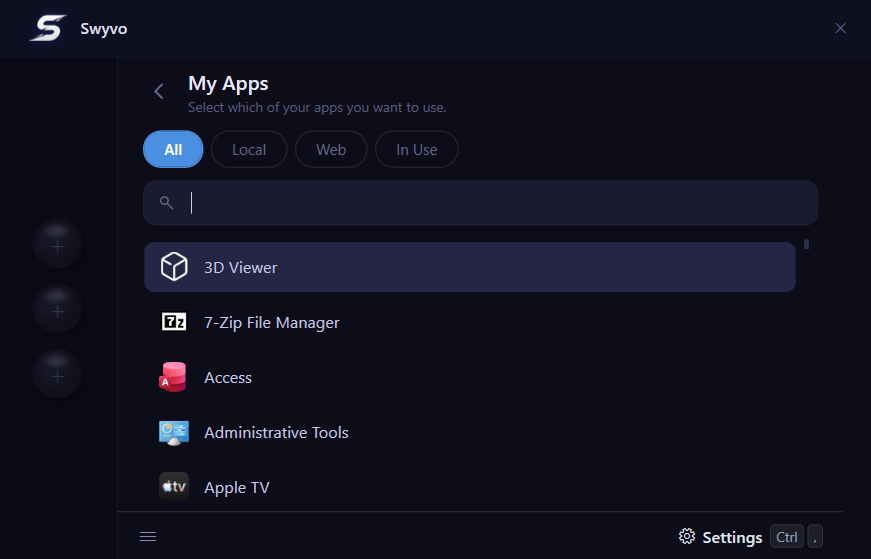
My Apps is the section you will use to select which apps you want to launch and use with Swyvo. My Apps is a list which reads all installed apps and also all added web apps (you can add web apps to launch with Swyvo from [New Web App](/new-web-app) section). You can use the searchbar to quickly find the app you want to use or search the sublists: All, Local, Web, In Use.
 ### Sublists
* **All:** Contains all installed and added web apps in one unified view.
* **Local:** Filters to show only the applications physically installed on your device.
* **Web:** Filters to show only the custom web apps you have configured.
* **In Use:** Displays only the applications that are currently active or assigned to your quick access slots.
* *Pro-tip:* Right-click or use the three-dot menu on a web app to edit or delete it completely.
### Manage Web App
After you add a website from [New Web App](/new-web-app) you can go to the Web sublist and right click or press `Alt + Enter` to open a menu to manage the app. From there you can:
* Add/Remove the app to/from the app slots.
* Edit. It has options to change the icon and name of the app.
* Delete. It deletes the app completely from Swyvo.
### Keyboard Navigation
You can navigate the lists with the Up/Down arrows and the sublists with the Left/Right Arrows.
### Sublists
* **All:** Contains all installed and added web apps in one unified view.
* **Local:** Filters to show only the applications physically installed on your device.
* **Web:** Filters to show only the custom web apps you have configured.
* **In Use:** Displays only the applications that are currently active or assigned to your quick access slots.
* *Pro-tip:* Right-click or use the three-dot menu on a web app to edit or delete it completely.
### Manage Web App
After you add a website from [New Web App](/new-web-app) you can go to the Web sublist and right click or press `Alt + Enter` to open a menu to manage the app. From there you can:
* Add/Remove the app to/from the app slots.
* Edit. It has options to change the icon and name of the app.
* Delete. It deletes the app completely from Swyvo.
### Keyboard Navigation
You can navigate the lists with the Up/Down arrows and the sublists with the Left/Right Arrows.
You can search for an app by immediately typing the name of the app (You can disable this option if you don't like it from [General](general) settings). If you decide to disable it you can focus on the searchbar by pressing `Ctrl + F` or just / .
For web apps you can press `Alt + Enter` to open a menu to manage the app. You can navigate the options normally with Up/Down arrows and close it with `Esc` .
You can navigate the edit page of a web app by pressing `Tab` and`Shift + Tab` .