> ## Documentation Index
> Fetch the complete documentation index at: https://manual.swyvo.app/llms.txt
> Use this file to discover all available pages before exploring further.
# App Gallery
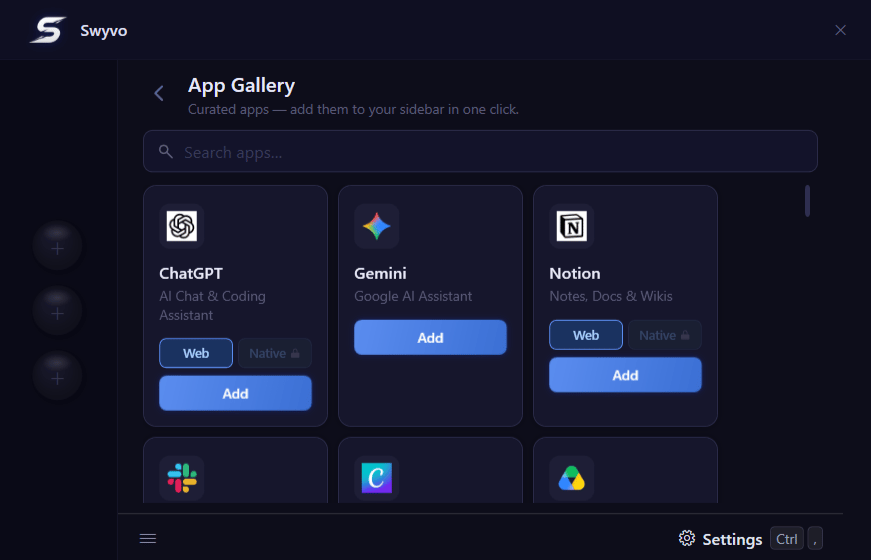
The App Gallery is Swyvo’s built-in discovery hub. Skip the manual setup and instantly browse a curated collection of popular applications, pre-configured and ready for use with a single click.
 ####
####
App Categories
* Web-Only: These applications don't have a dedicated windows app
* Web + Native: These applications have a windows app and you can choose whether you want to launch the web version or the native app.
#### Web vs Native. What to choose?
* Web: Faster and can fit into Swyvo's minimum windows size to occupy as less screen size as possible.
* Native: Access to all app's features, as most native apps are more detailed than their web apps. Minimum windows size is determined by the specific app which is usually significantly larger than Swyvo's minimum windows size.
#### Keyboard Navigation
You can navigate the App Gallery by using `Tab` to move right and `Shift + Tab` to move left. When focused on an app you can use the Left/Right arrows to choose between Web or Native option and then click `Enter`to add the app on the app slots.
You can search for an app by immediately typing the name of the app (You can disable this option if you don't like it from [General](general) settings). If you decide to disable it you can focus on the searchbar by pressing `Ctrl + F` or just / .